
How to Collect Client Feedback on a Website (Step by Step)
By GiveFeedback.ioUpdated 8 min readEspañol

Knowing how to collect client feedback on a website is half of delivering the project. The design can be finished on time and still slip by two weeks because comments arrive as a 40-line email, a voice note and a PDF with arrows that point at nothing. This guide compares the five common methods, then gives you a step-by-step review process, a checklist for good feedback and a briefing email you can send to your client today.
What "client feedback on a website" actually means
Client website feedback is any comment, correction or request the client makes about a site you are building for them, usually during a review round on a staging or live URL. It covers bugs ("the form doesn't send"), content changes ("update the phone number"), design requests ("make the logo bigger") and new ideas ("can we add a blog?").
The problem is rarely the feedback itself. It's the format. A developer needs to know which page, which element, on what device and what should happen instead. Most clients don't think in those terms, so the method you choose has to collect that information for them.
5 ways to collect client feedback on a website
1. Email
Everyone knows how to use it, which is its only real advantage. Comments arrive in long threads, mixed with unrelated questions, and with descriptions like "the second image on the services page". Screenshots, if any, are cropped phone captures with no URL.
2. Shared documents and spreadsheets
A Google Doc or a spreadsheet with columns (page, comment, status) is a step up: there's one place for everything and you can mark items done. But the client still has to describe locations in words, copy URLs by hand and paste screenshots manually. Most give up halfway through.
3. PDF comments on screenshots
Some agencies export full-page screenshots to PDF and ask clients to annotate them. It works for static designs, but the PDF is already out of date once you change anything, it can't show hover states, forms or mobile menus, and it tells you nothing about the client's browser.
4. Video calls
Walking through the site together on a call is great for the first review of a new design, because you hear the reasoning behind each comment. The downsides: someone has to take notes, the notes are only as good as that person's memory, and scheduling a call for every small fix doesn't scale.
5. Visual feedback tools
A visual feedback tool adds a button or widget to the website. The client clicks it, marks up a screenshot of the page and writes a comment. The tool attaches the URL and technical data automatically and sends everything to a shared dashboard or project management tool.
Comparison table
| Method | Screenshot included | Exact URL | Browser and device info | Single list of tasks | Effort for the client |
|---|---|---|---|---|---|
| Sometimes, manual | Rarely | No | No | Low to write, high to write well | |
| Docs / spreadsheets | Manual | Manual | Manual | Yes | Medium |
| PDF comments | Yes, but static | No | No | Per file | Medium |
| Video calls | Shared screen only | Verbal | Verbal | Only if someone takes notes | Low, but needs a meeting |
| Visual feedback tool | Yes, automatic | Yes, automatic | Yes, automatic | Yes | Low |
In practice, most agencies combine two: a call for the first look at a new design, and a visual feedback tool for everything after that.
Step by step: how to run a review round
This process works for a first design review, a pre-launch check or an update to an existing site.
- Freeze the version. Deploy to a staging URL (or the live site, if it's an update) and stop changing things during the review window. Feedback on a moving target creates duplicates.
- Set up the feedback channel. If you use a visual feedback tool, install it on the staging site and test it yourself on desktop and mobile before the client sees it.
- Send the briefing email. Tell the client what to review, how to leave feedback, and the deadline. A template is below.
- Give a fixed window. Three to five working days is usually enough. A window with an end date gets more focused feedback than an open-ended "let us know".
- Triage daily or at the end. One person on your side reads every item, merges duplicates, labels each one (bug, content change, design request, new scope) and asks questions if something is unclear.
- Separate in-scope from out-of-scope. New features and changes to approved decisions go to a separate list to quote or schedule. Don't fix them silently.
- Fix and mark as resolved. Work through the list and mark each item resolved, so the client can see progress without asking.
- Close the round in writing. Send a short summary: what was fixed, what was moved to a later phase, and what you need from the client next (often approval; see our guide to client website approval).
What a good piece of feedback includes
A useful comment answers five questions. If your method doesn't capture them automatically, ask the client for them explicitly.
| Element | Why it matters | Example |
|---|---|---|
| Where | The page and the element | "Contact page, the blue Send button" |
| What happens | What the client sees now | "Clicking it does nothing" |
| What should happen | The expected result | "It should send the form and show a thank-you message" |
| Context | Device, browser, screen size | "iPhone 14, Safari" |
| Evidence | A screenshot with the problem marked | Arrow pointing at the button |
Compare these two:
- Bad: "The contact form is broken."
- Good: "Contact page: when I click Send after filling in all fields, nothing happens and no thank-you message appears. iPhone 14, Safari. Screenshot attached with the button circled."
The second can be fixed today. The first needs a call. For bugs specifically, our bug report template goes into more detail.
How to brief the client (sample email)
Clients give better feedback when you tell them exactly what you want. Keep the email short, scannable and specific. Adapt this one:
Subject: Website review: please send your feedback by Friday 16 October
Hi Laura,
The new website is ready for your review at: https://staging.example.com
What to review this round: all pages in the main menu, on desktop and on your phone. Please focus on content (texts, images, contact details) and anything that doesn't work as you'd expect.
How to leave feedback: click the "Give Feedback" button at the bottom of any page. Your browser will ask for permission to capture the tab; click "Share". You can draw on the screenshot to show what you mean, then add a short title and description. One comment per issue, please. You don't need an account.
A good comment says: what you see now, and what you'd like instead. For example: "The phone number in the footer is old. It should be 600 123 456."
Deadline: Friday 16 October. We'll make the changes the following week and send you a summary.
This is review round 1 of 2 included in the project. New pages or features can be added later, and we'll quote them separately.
Thanks, Alex
Three details make this email work: a single link, a single way to send feedback, and a clear end date. Mentioning the number of included rounds sets expectations without sounding defensive.
Where GiveFeedback.io fits
GiveFeedback.io is a visual feedback tool built for exactly this review round. You paste one JavaScript snippet into the site's <head> (there are install guides for plain HTML, WordPress via WPCode, Shopify, Wix, Squarespace, PrestaShop and Google Tag Manager in the help section). A "Give Feedback" button then appears on the site.
When your client clicks it:
- The browser asks permission to capture the tab, and the visible part of the page is captured.
- The client marks it up with arrows, rectangles, text, a pen or a highlighter.
- They add a title, a description and a type (Proposal, Bug, Recommendation or Feature by default).
- The page URL, screen resolution, operating system, browser and version, language and timezone are attached automatically.
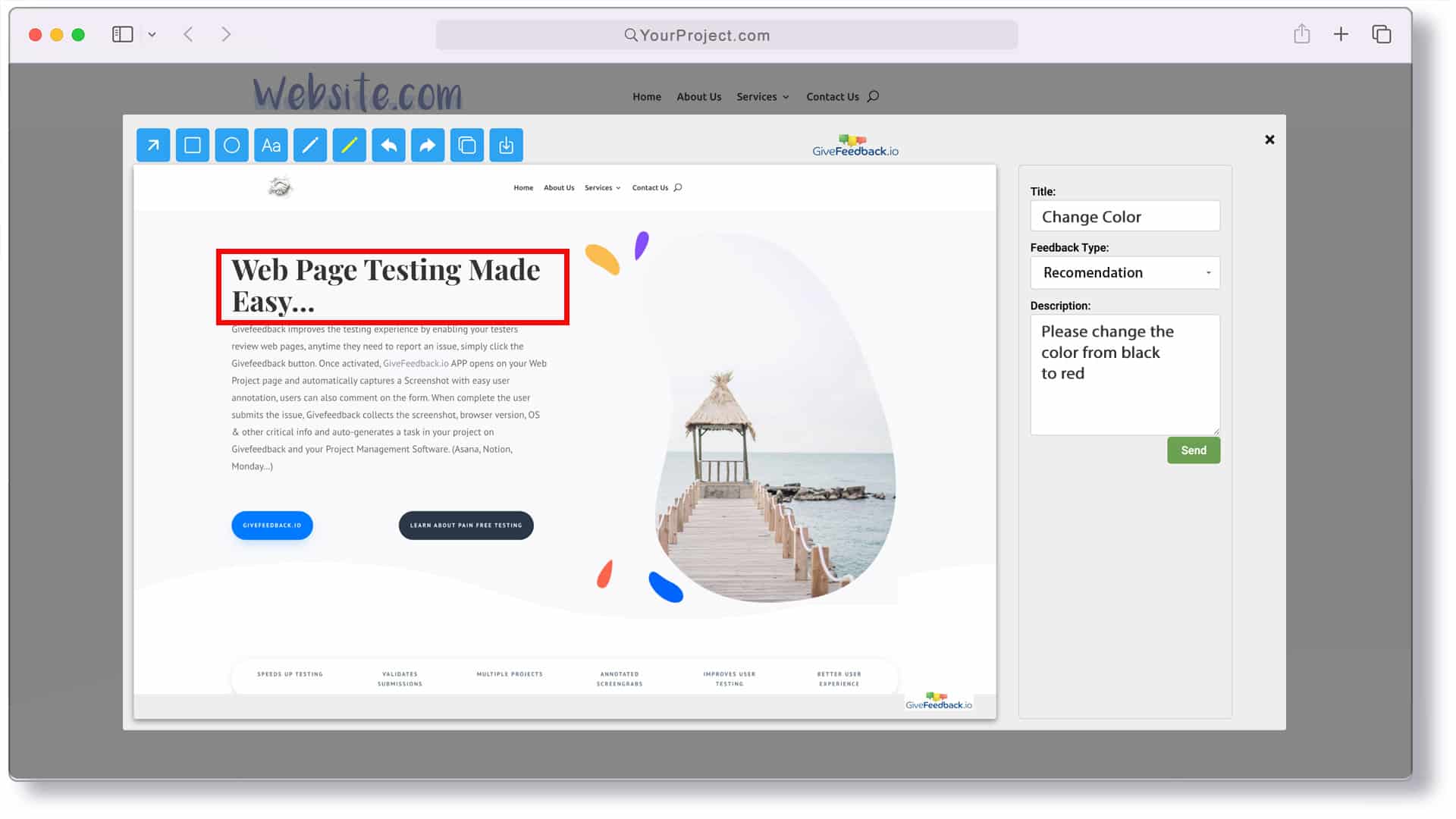
Clients don't need an account. Your team sees every item in a dashboard with its screenshot and can mark it Open, Resolved or Archived. You can invite clients by email to a read-only view of the project's feedback, and if your team works in Notion or Asana, each item can be sent there automatically.
To be clear about the limits: it captures the visible viewport, not the full page; there's no video recording and no console or network logs; integrations are limited to Notion and Asana today; and there are no email notifications when new feedback arrives, so plan to check the dashboard during the review window.
As of October 2026, the Free plan covers 5 projects and 50 feedback reports with no credit card (screenshots carry a watermark), and Pro costs €9.99/month for up to 100 projects. See pricing for the full comparison. If you're comparing several tools, our roundup of the best website feedback tools covers the alternatives.
A few habits that make feedback rounds shorter
- One channel, repeated. Say it in the kickoff, the briefing email and when feedback arrives elsewhere.
- One reviewer on the client side. If five people review, ask the client to name one person who resolves contradictions before you start work.
- Review on real devices. Ask the client to check on their own phone. Many issues only appear there.
- Reply to every item. A short "fixed" or "moved to phase 2" on each comment avoids the same feedback coming back next round.
Pick a method that collects the where, what and context for you, brief the client clearly, and close each round in writing. The next review will be shorter.
Frequently asked questions
What is the best way to collect client feedback on a website?
Let the client leave comments directly on the page with a visual feedback tool. Each comment then includes a screenshot, the exact URL and the browser and device details, so you don't have to ask follow-up questions.
Do clients need an account to leave website feedback?
It depends on the tool. With GiveFeedback.io, clients click a button on the site and send feedback without creating an account; they only need to allow the browser to capture the tab.
How many feedback rounds should a website project have?
Most agencies include two or three review rounds in the contract and charge for extra rounds. What matters is that the number is written down and agreed before the first review starts.
How do I stop clients sending feedback by email, WhatsApp and phone at the same time?
Agree on one channel in the kickoff, repeat it in the review briefing email, and politely move any feedback that arrives elsewhere into that channel yourself the first time, telling the client where it now lives.
Keep reading

Guides
How to Choose a Website Feedback Tool (2026 Checklist)
How to choose the best website feedback tool in 2026: tool types, a 12-point checklist, a free scoring template and a one-week client trial plan.

Guides
User Acceptance Testing (UAT): Template, Checklist & Examples
What user acceptance testing is, UAT vs QA, example test scenarios, exit criteria and a free UAT test plan and sign-off template (Excel) for websites.
Guides
Bug Report Template (Free Excel & Word) + Examples
Free bug report template for Excel, Google Sheets and Word, with good and bad bug report examples and the fields that matter for website bugs.
Collect visual feedback on your next website
Visual website feedback for agencies, freelancers and their clients.
Free plan forever · No credit card · Set up in minutes