
For WordPress
Visual client feedback on your WordPress sites
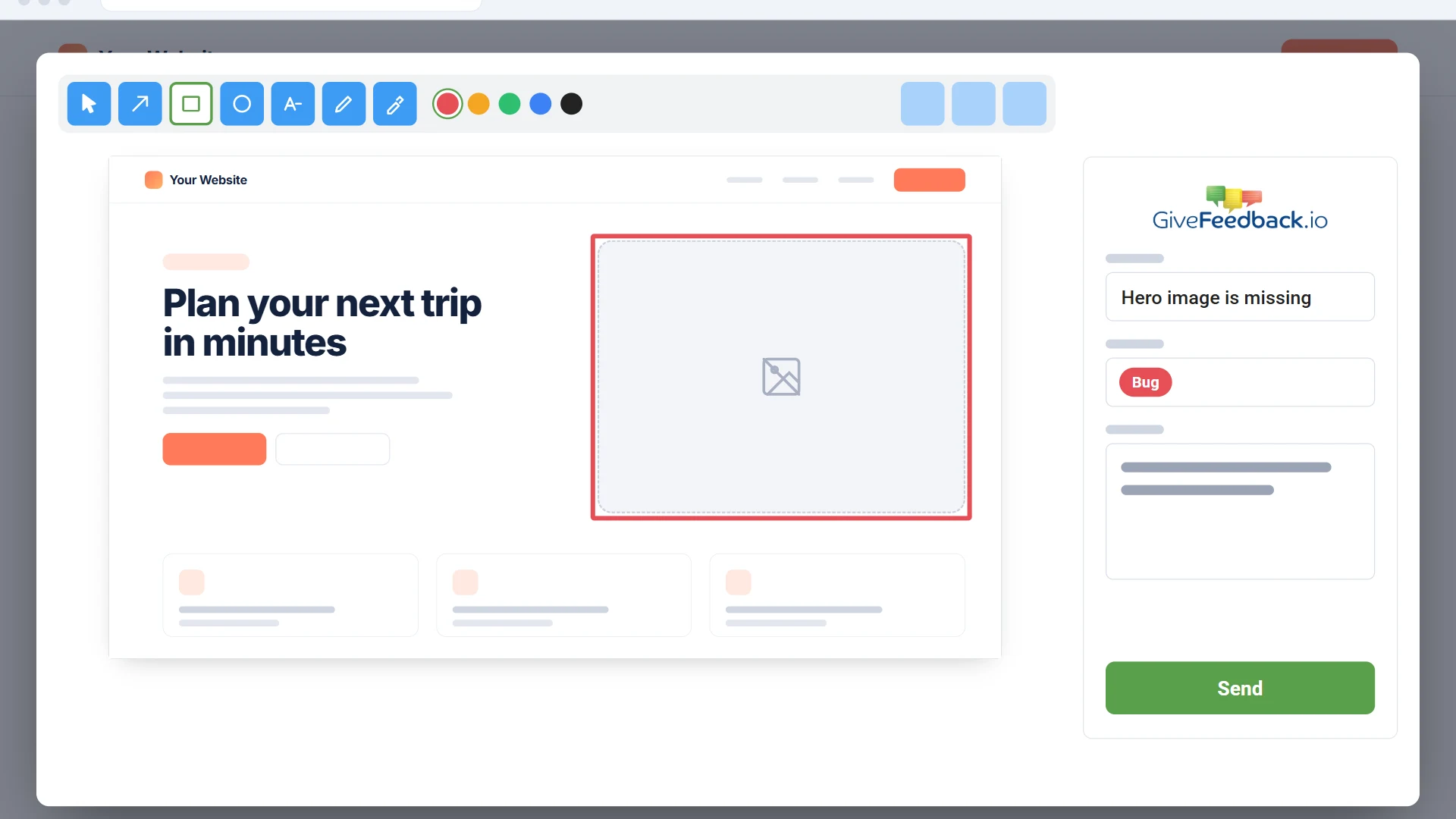
Add a feedback button to any WordPress site with one snippet. Clients click it on the page they mean, mark up a screenshot and send it, with the page URL and browser details attached. They don't need a WordPress login, and there's no plugin of ours to keep updated.
- Doesn't depend on your theme or page builder
- No WordPress account for your clients
- Free plan, no credit card
Free plan - No credit card - Set up in minutes
Install
Added in two minutes with WPCode
Copy your project's snippet from GiveFeedback.io. In WordPress, install the free WPCode plugin (also called Insert Headers and Footers), open Code Snippets > Header & Footer, paste the snippet into the Header field and save. Rather edit the theme? Add it before </head> in a child theme's header.php, so theme updates don't remove it.
- One snippet per site, with its own project token
- Loads on every page, shop and checkout included
- Remove it and the button is gone, nothing left behind
<script type="text/javascript">
(function(g,i,v,e){
  i.gfConfig={token:"YOUR-PROJECT-TOKEN"};
  /* ... the rest of your snippet ... */
})(document, window);
</script>
For your clients
Clients review the real site, not a PDF
Clients browse the site like any visitor and click Give Feedback on the page they want to comment on. They mark up the screenshot with arrows, boxes, text, numbered markers and blur, or point at the element they mean, then send it. It works on computers, phones and tablets, so they can check the mobile layout on their own phone.
- Arrows, boxes, text, numbered markers, blur and crop
- From computers, phones and tablets
- No account needed to send feedback
For your team
Reports your developer can act on
Each report reaches your dashboard with the page URL, the browser and its version, the operating system, the screen size and a log of the page's console messages, errors and failed requests. Connect your team's tool and it is created there too, as a Jira issue, a Trello card, an Asana task or a Slack message, with the screenshot attached.
How it works
Create a project
Sign up and add your WordPress site's address as a project. Copy its snippet.
Paste the snippet
Install WPCode, paste the snippet into the Header field and save.
Ask for feedback
Send your client the site's address: the Give Feedback button is on every page.
WordPress questions
Is there a GiveFeedback.io plugin for WordPress?
You don't need one of ours. The feedback button is one snippet in the site's header, which WordPress adds with a free header plugin such as WPCode or with a line in a child theme. It doesn't depend on your theme or page builder, and there's no extra plugin of ours to update.
Can clients send feedback without a WordPress login?
Yes. Anyone who visits the site can use the button: they need neither a WordPress account nor a GiveFeedback.io account. On paid plans you can hide the button and open the feedback form from your own link or menu instead.
Does it work on a staging site?
Yes. Add the staging site as a project of its own: each project's button only sends reports from its own site (with or without www). Keep one project for the staging copy and one for the live site.
Does it work with WooCommerce?
Yes. The snippet loads on every page, shop, cart and checkout included, so clients can report a problem anywhere in the order flow, with the page and browser details attached.
Is it free?
The free plan includes 5 projects and 50 feedback reports in total, with every integration. Pro and Company add more reports, screenshots without the watermark and two-way status sync with your project tool.
Get feedback on your next WordPress site
Create your first project for free. No credit card needed.
Free plan - No credit card - Set up in minutes