
What Is Visual Feedback? A Guide for Web Teams
By GiveFeedback.ioUpdated 8 min readEspañol

Visual feedback is feedback on a website or design given by showing the problem, with a marked-up screenshot, a short video or a comment pinned to the page, instead of describing it in words. For agencies, freelancers and project managers it's the difference between "the button on the services page looks weird" and an image of that exact button with a red box around it, plus the URL, browser and screen size. With the screenshot and the browser details attached, most comments can be fixed without a single follow-up question.
What is visual feedback?
Visual feedback is any comment about a website, app or design that includes a visual reference to the problem: the reviewer points at it instead of explaining where it is. On web projects it takes one of three forms, and the most useful versions also carry the technical context the developer needs to reproduce what the reviewer saw.
- Annotated screenshot: an image of the page with arrows, boxes, highlights or text on top.
- Short video: a recording of the screen, often with the reviewer talking through the steps.
- Pinned comment: a note attached to a specific element on the live or staging page.
The context is what turns a picture into something a developer can act on: the page URL, the browser and version, the operating system and the screen size. Without it, a screenshot still leaves the developer guessing how to reproduce the problem.
In UX design, "visual feedback" also means the way an interface responds to an action, such as a button changing color when it's clicked. Here it means the other kind: feedback that people give on a website project.
Why is visual feedback better than text-only feedback?
The developer sees exactly what the reviewer saw, so the follow-up questions disappear. Text-only feedback forces the reviewer to describe locations and problems with words they often don't have, and each vague line costs an email to clarify. A screenshot with the problem marked and the browser details attached can be fixed the same day.
Here's a typical piece of text-only feedback from a client:
"Hi! A few things: the photo on the about page is wrong, the menu does something strange on mobile, and can we make the blue a bit darker? Also the form didn't work for my colleague."
Every line needs a follow-up question. Which photo? What does "strange" mean? Which blue, the buttons or the header? Which form, and what browser was the colleague using? Three emails later, you know enough to start fixing. The same feedback as visual reports:
| Text-only feedback | Visual feedback |
|---|---|
| "The photo on the about page is wrong" | Screenshot of /about/ with the photo boxed: "Replace with the team photo from the shared folder" |
| "The menu does something strange on mobile" | Screenshot at phone width with the menu overlapping the logo circled; browser, system and resolution attached |
| "Make the blue darker" | Screenshot with the header button highlighted: "This blue, closer to our logo" |
| "The form didn't work" | Screenshot of the error message on /contact/, with the browser and version attached |
The benefits are concrete:
- Fewer clarification rounds: the developer sees what the reviewer saw, so the "which page?" emails stop.
- Less interpretation: "top right" and "the big button" mean different things to different people; an arrow doesn't.
- Faster bug reproduction: with the URL, browser and screen size, the developer opens the same page in the same conditions.
- Easier for non-technical clients: pointing at something is easier than describing it with web vocabulary they don't know.
- A clean record: each issue is one item with its image and status, not a paragraph buried in an email thread.
What are the types of visual feedback?
There are five: annotated screenshots, screen recordings, comments pinned on the live page, session replay and comments on design mockups. For most website projects, annotated screenshots with the technical details attached automatically cover the bulk of client feedback; video earns its place for bugs that depend on a sequence of clicks.
| Type | Best for | Watch out for |
|---|---|---|
| Annotated screenshots | Layout bugs, copy changes, design tweaks, most client feedback | Shows one moment; a problem that spans the page may need more than one capture |
| Screen recordings (video) | Bugs that happen in steps, animations, interactions | Takes longer to watch; clients often skip the narration |
| Comments pinned on the live page | Design review, content approval on many elements | Comments can lose their position when the layout changes |
| Session replay | Complex web apps where you need the exact steps | Usually in pricier tools; raises privacy questions |
| Comments on design mockups | Feedback before anything is built | Doesn't catch problems that only appear in a real browser |
If you're choosing how to capture screenshots by hand instead, our guide to screen grab annotation apps covers the built-in options on Windows, Mac and the browser.
How does visual feedback help project managers?
Visual feedback turns the project manager's job from transcribing into triaging. Without a system, a PM collects comments from email, chat, calls and PDFs, then retypes each one into the team's task tool and attaches screenshots by hand. With a visual feedback tool, every comment arrives as a structured item with its screenshot, type, page and browser details, ready to assign.
The difference grows when the tool connects to the project management app the team already uses. Each report becomes a task there automatically, with the screenshot attached, and with some tools the status syncs both ways. In GiveFeedback.io that means an issue in Jira, a card in Trello, a task in Asana, ClickUp or Wrike, an item in monday.com, a page in Notion or a message in Slack or Discord.
What should a visual feedback tool have?
It should let clients report without an account or extension, work on the live or staging site, offer basic annotation tools, attach the URL and browser data automatically, track each item's status, connect to the task tool your team already uses and price in a way that fits an agency's number of projects. Check each point against what the tool does today.
- No friction for clients: do reviewers need an account, a browser extension or training? Every extra step sends some clients back to email.
- Works on the real site: feedback should happen where the problem is, not on a static image uploaded somewhere else.
- Annotation tools: arrows, boxes, text and a highlighter, at minimum.
- Automatic technical data: URL, browser and version, operating system and screen resolution.
- Status and filters: open, resolved and archived, so you know what's left before launch.
- Live integrations: with the tool your team already uses. Check which ones work today, not which are "coming soon".
- Developer extras: console logs, network logs or session replay, if you build web apps rather than websites.
- Pricing that fits your volume: per user, per project or per feedback report makes a big difference for an agency.
For a scoring template that turns this list into a side-by-side comparison, see how to choose a website feedback tool.
How does visual feedback work in GiveFeedback.io?
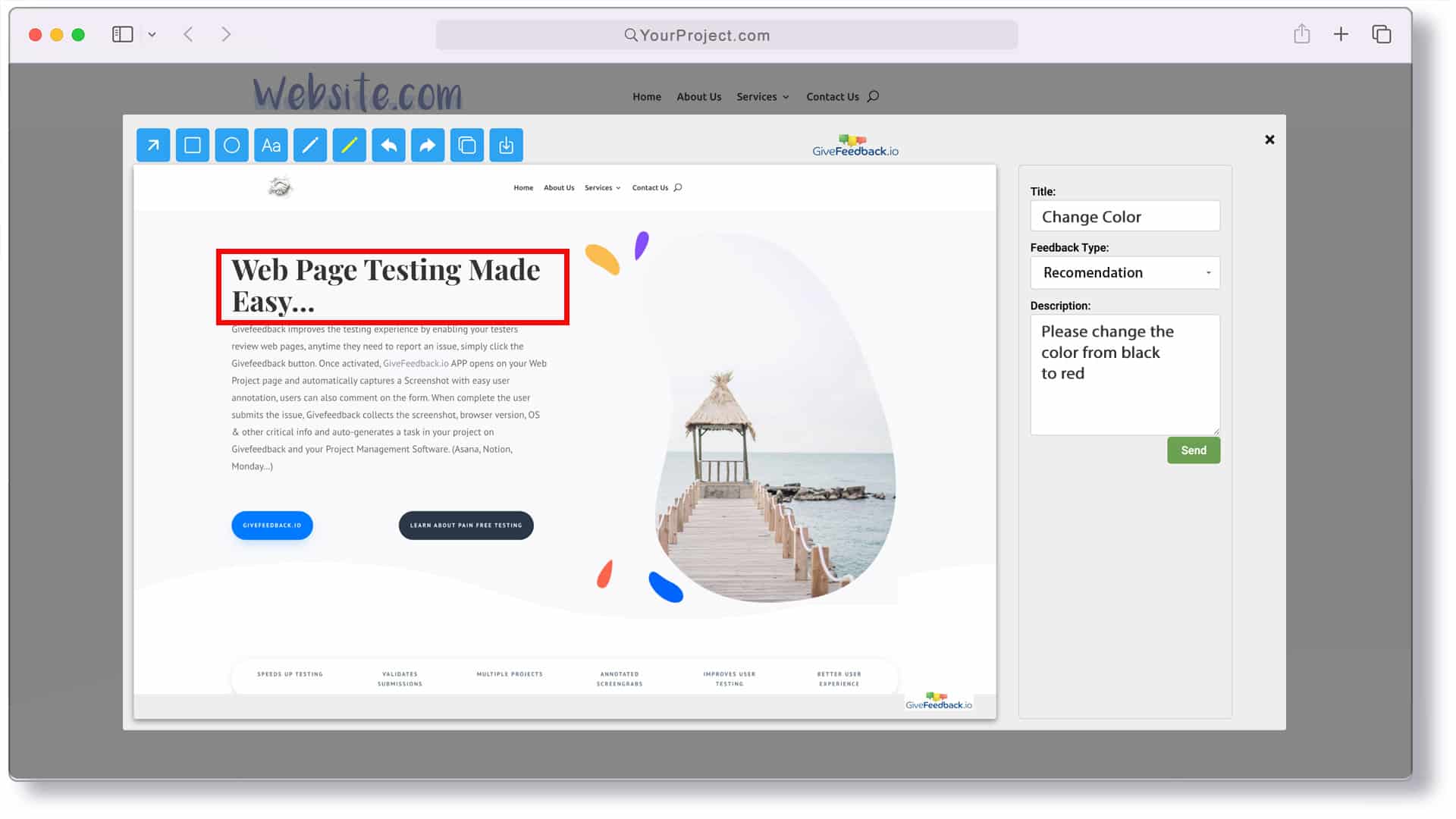
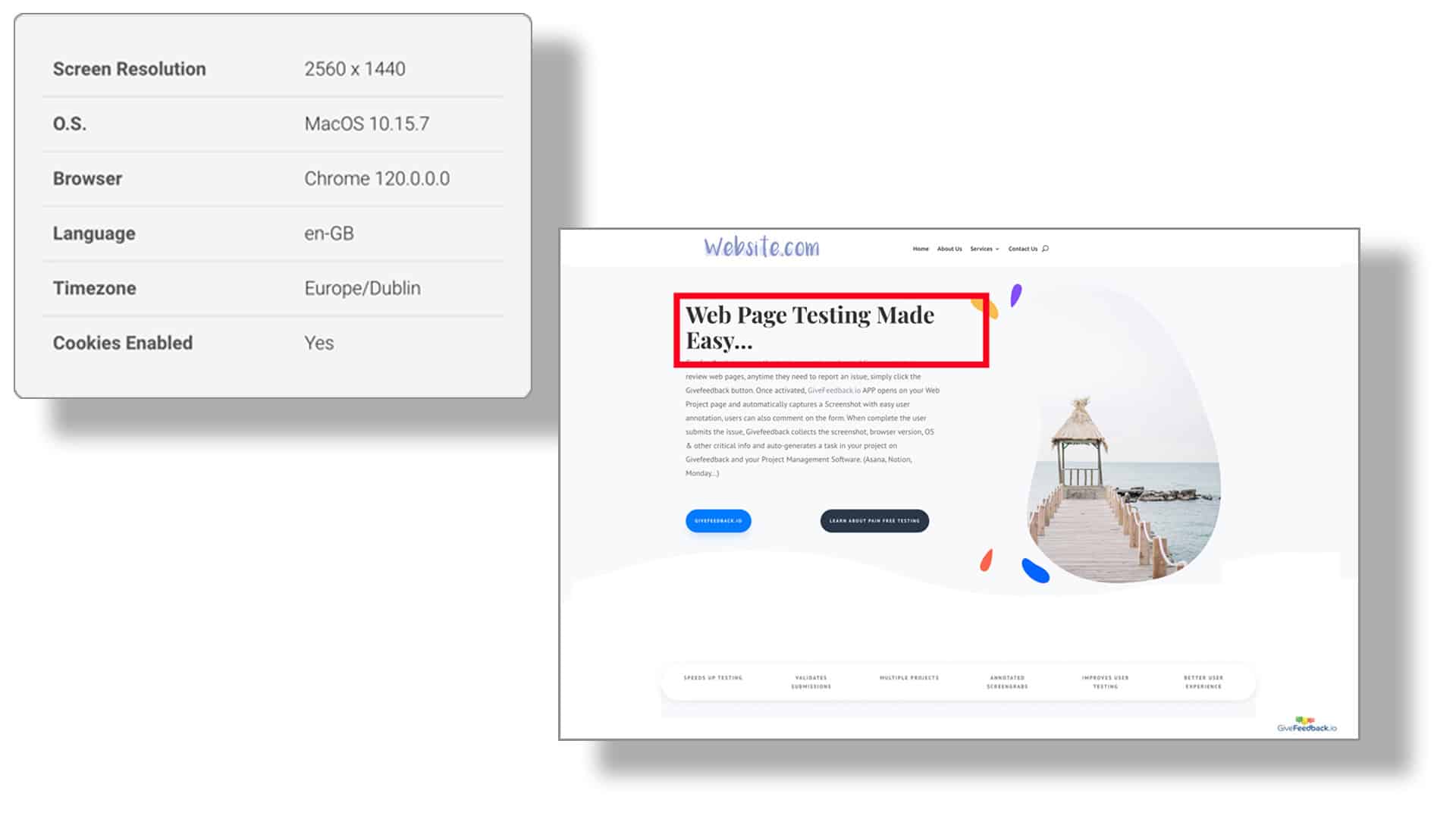
GiveFeedback.io adds a "Give Feedback" button to your site with one script. The client clicks it, the browser captures the visible part of the page, the client marks it up and adds a title, a description and a type, and the report arrives in your dashboard with the screenshot, URL, browser, operating system, screen resolution, language and time zone attached. Clients don't need an account.
- Install: create a project and paste one script into the site's
<head>; the help section has guides for WordPress, Shopify, Wix, Squarespace and more. - Click: a "Give Feedback" button appears on the site and the client clicks it, with no account.
- Capture: on a computer the browser asks permission to capture the tab (phones skip this step), and the visible part of the page opens in a markup editor with arrows, rectangles, ellipses, numbered markers, free drawing, text, a highlighter and blur, in five colors.
- Describe: the client adds a title, a description and a type (Bug, Proposal, Recommendation or Feature by default) and sends it.
- Act: the report appears in your dashboard and, if you connect one, in your task tool.
Each report keeps the marked-up screenshot next to the data the browser reported, so the developer knows the screen size, system and browser version without asking.
The Free plan covers 5 projects and 50 feedback reports; Pro is €19.99 a month, or €9.99 a month billed yearly, for up to 100 projects. See pricing.
How do you get better visual feedback from clients?
Tell clients how to report before the review starts, ask for one issue per report, ask for the expected result and not only the problem, separate bugs from change requests with feedback types, and mark items resolved so the client sees progress. A tool makes pointing easy; these habits make what clients point at useful.
- Brief them first: one short email with the staging link, the deadline and "click the feedback button, mark the problem, say what you expected". Our guide on how to collect client feedback on a website has a briefing email to copy.
- One issue per report: it's easier to assign, fix and close.
- Ask for the expected result: "the logo should link to the home page" can be fixed; "the logo is broken" needs a call.
- Separate bugs from change requests: feedback types make scope creep visible before it eats the budget.
- Close the loop: mark items resolved so the client re-checks only what changed.
For the written part of each report, our bug report template lists the fields that make a report easy to act on. Pointing at a problem is an old idea; the gain comes from making it the default way your clients report. Put a feedback button on the staging site of your next project and count how many "which page?" emails you don't have to send.
Frequently asked questions
What is visual feedback on a website?
Visual feedback is a comment about a website that shows the issue instead of only describing it: a screenshot with the problem marked, a short screen recording or a comment pinned to an element on the page. The most useful kind also carries the page URL, browser, operating system and screen size, so the developer can open the page in the same conditions.
Why is visual feedback better than feedback by email?
Because the developer sees exactly what the reviewer saw. A marked-up screenshot with the URL and browser attached answers the questions that text-only feedback always triggers: which page, which element, which device and what should happen instead. Each comment also becomes a separate item with a status, instead of a paragraph in a long email thread.
Do clients need to install anything to give visual feedback?
It depends on the tool. Some ask reviewers to install a browser extension or create an account, and busy clients often give up and go back to email. Others, like GiveFeedback.io, add a button to the website itself: the client clicks it, allows the browser to capture the tab, marks up the screenshot and sends it, with no account.
Is visual feedback only for bugs?
No. It works just as well for design changes, copy edits and content requests, which are most of what clients send during a website review. Labeling each report by type, such as bug, proposal or feature request, keeps them apart, so you can fix bugs straight away and quote new requests that fall outside the agreed scope.
Keep reading

Guides
How to Choose a Website Feedback Tool (2026 Checklist)
How to choose the best website feedback tool in 2026: the tool types, 12 criteria, a free scoring template (Excel) and a one-week trial plan with a real client.
- 8 min read

Guides
How to Collect Client Feedback on a Website (Step by Step)
How to collect client feedback on a website: 5 methods compared, a review round step by step, good vs vague feedback examples and a briefing email to send today.
- 9 min read

Guides
User Acceptance Testing (UAT): Template, Checklist & Examples
What user acceptance testing is, UAT vs QA, test scenario examples, a UAT checklist for websites and free templates: Excel test plan and Word sign-off form.
- 9 min read
Collect visual feedback on your next website
Visual website feedback for agencies, freelancers and their clients.
Free plan - No credit card - Set up in minutes